

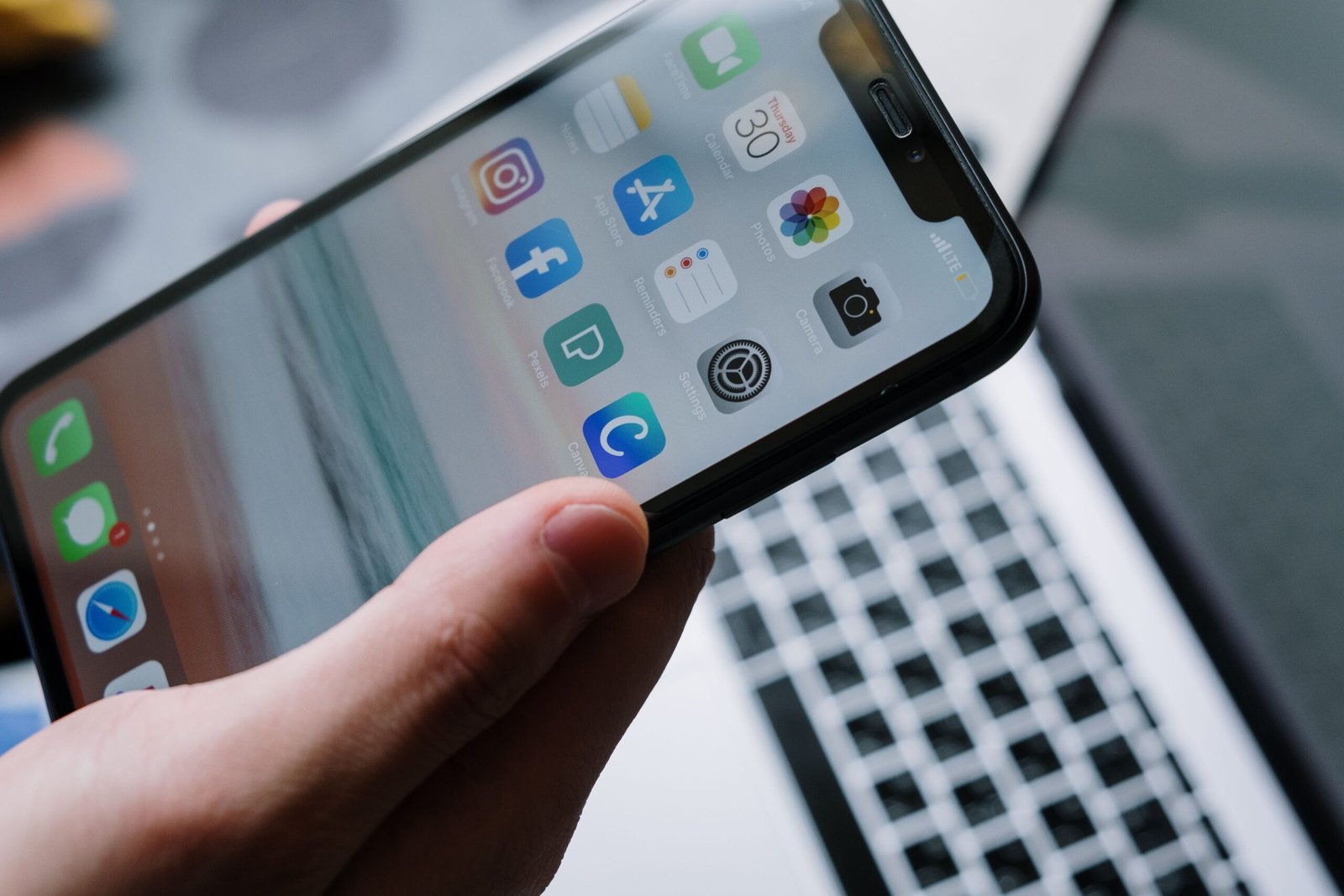
Modern CCTV systems are incredibly powerful. The days of sitting in a back room staring at a bulky monitor are over. Today, the biggest advantage of a CCTV system is Mobile View—the ability to check your home, shop, or office live from your smartphone, no matter where you are.
Whether you are working in an office in Gurgaon and want to check on your shop in Faridabad, or you are traveling out of the city and want to ensure your family is safe, mobile view gives you complete peace of mind.
At Reliable CCTV Solutions, we configure mobile view for every single installation we do across Delhi NCR. Here is a simple, step-by-step guide on how it is done.
Step 1: Connect Your DVR/NVR to the Internet
Your recording box (DVR or NVR) needs to be connected to your internet router. This is usually done using a standard LAN/Ethernet cable plugged directly from the DVR into your Wi-Fi router. Once connected, the DVR will get an IP address and gain internet access.
Step 2: Download the Official Mobile App
Depending on the brand of cameras you have, you need to download their specific app from the Google Play Store or Apple App Store.
- For Hikvision, download the Hik-Connect app.
- For CP Plus, download the CP Plus iCMOB app.
- For Dahua, download the gDMSS or DMSS app.
Step 3: Scan the QR Code (P2P Setup)
Modern DVRs use a “Plug and Play” technology called P2P. Open the app you just downloaded and create an account. Then, look for the “Scan QR Code” option. On your DVR, right-click and go to the main menu. You will find a unique QR code on the screen. Scan this QR code with your phone.
Step 4: Set Up Your Password
Once the DVR is added to the app, it will ask you to create a secure password. Do not use a simple password like “1234” or “admin”. Use a strong password because your cameras are now connected to the internet.
Step 5: Start Viewing
You are done! You can now tap on the device in your app to see a live feed of all your cameras. You can switch between cameras, view recorded playback, and even hear audio (if your cameras have microphones).
Hi, this is a comment.
To get started with moderating, editing, and deleting comments, please visit the Comments screen in the dashboard.
Commenter avatars come from Gravatar.